penguins' eggs gui
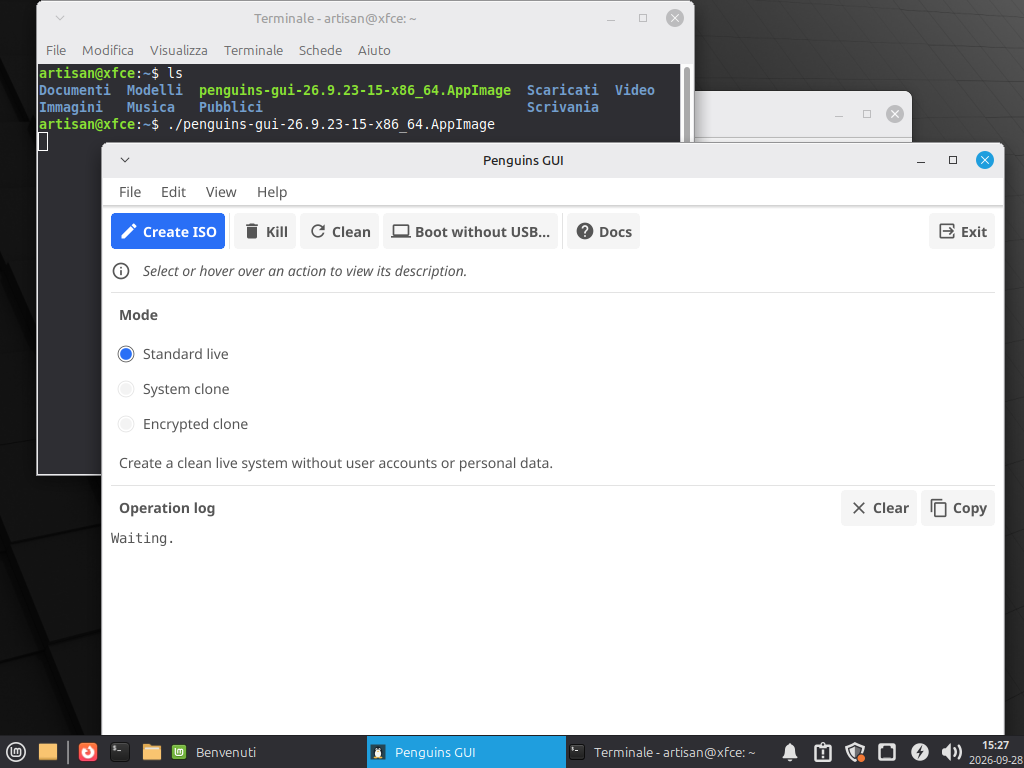
penguins-gui is a minimal, independent desktop Graphical User Interface (GUI) for Penguins' Eggs, developed in Go using the modern cross-platform Fyne toolkit.
It brings the power of eggs remastering directly to desktop environments, enabling users to launch remastering flights, monitor live execution logs, configure encryption passphrases visually, and run system setup tasks without touching the command line.
📦 Installation & First Start
You can start with penguins-gui, even if penguins-eggs is not installed yet:
- Download the penguins-gui AppImage or the package for your distribution from the latest release.
- For the AppImage, make the downloaded file executable (
chmod +x penguins-gui-*.AppImage) and open it. For a native package, install it using your distribution's package manager. - Launch penguins-gui and select Install penguins-eggs CLI from the Edit menu.
The GUI will configure the appropriate package repositories and install penguins-eggs for you. Once installation is complete, you can start creating your live ISO directly from the GUI.
🏗️ Architectural Placement
penguins-gui is designed with strict modular separation:
penguins-gui (Desktop GUI) -> eggs (CLI) -> coa (Go Orchestrator) -> oa (C Engine)
- Zero Coupling:
penguins-guidoes not importeggsinternals. It operates strictly by orchestrating the official CLI and system utilities. - Privilege Separation: Ordinary desktop sessions run as standard user space. Only the underlying commands requiring system mutations are elevated via
pkexec(Polkit) orsudo. - Independent Lifecycle:
penguins-guican be launched even on a fresh system wherepenguins-eggshas not yet been installed.
🚀 Core Features
1. Remastering Flights
From the main window, users can select one of three remastering modes and initiate the flight with a single click:
- Standard Live: Produces a clean, bootable live hybrid ISO with standard live credentials.
- System Clone (
--clone): Captures the running system, preserving real user accounts, credentials, and/homedata. - Crypted Clone (
--crypted): Generates a LUKS2-encrypted squashfs live image (Debian family). A dedicated graphical dialog prompts for the passphrase, automatically passing it viaEGGS_LUKS_PASSPHRASE.
2. Live Execution Stream & ISO Discovery
- Real-time Terminal Output: Displays unified standard output and error streams in a live scrolling terminal view with Clear and Copy actions.
- Artifact Discovery: Once the build completes, the GUI scans
/home/eggs, identifies the generated.isoimage, and provides an Open ISO Directory button to open the folder directly in your desktop file manager viaxdg-open. - Process Guard: Prevents closing the window while a remastering flight is actively running to avoid orphaned chroot mounts.
🛠️ Automated Setup & Package Management
The Edit menu provides integrated helpers that make preparing a remastering host seamless:
📥 Install penguins-eggs CLI
- Can be invoked on a machine before
penguins-eggsis installed. - Automatically configures the official repository and signing GPG keys for your distribution (Debian/Ubuntu, Arch/Manjaro, Fedora, openSUSE, Alpine).
- Refreshes package caches and installs the
penguins-eggspackage. - The GUI detects the new CLI immediately and unlocks remastering actions without requiring a restart.
🎨 Install Calamares (with Qt5/Qt6 Runtime Discovery)
- Installs the standard Calamares installer package via the native package manager.
- Inspects the installed Calamares binary using
lddto determine whether it is built against Qt 5 or Qt 6. - Automatically pulls and installs the matching QML and Quick Controls runtime dependencies required for smooth slideshows (supporting
slideshowAPI: 2).
⚙️ System Utilities & Maintenance
- Update /etc/skel (
eggs tools skel): Clones the visual and shell configuration of the current user into/etc/skel, ensuring new users and live sessions inherit the exact look and feel of the desktop. - Configure grub40 (
eggs tools grub40): Generates or updates GRUB loopback configuration in/etc/grub.d/40_customto boot ISO images directly from the local hard drive. - Clean System (
eggs tools clean): Cleans active logs and package manager caches (apt/pacman). - Destroy / Kill (
eggs destroy): Safely unmounts virtual filesystems (MNT_DETACH) and wipes temporary build nests after an interrupted flight.
📋 Requirements
- Operating System: Linux with an active X11 or Wayland desktop session.
- Authentication: Polkit (
pkexec) orsudofor administrative actions. - Graphics & Toolkit: OpenGL-capable display driver and distribution dependencies for Fyne.
- Dependencies:
curl,gpg(on Debian family), andeggs(can be installed via the GUI menu).
💻 Source Code & Packages
- Source Repository: https://github.com/pieroproietti/penguins-gui
- Local Development:
git clone https://github.com/pieroproietti/penguins-gui.git cd penguins-gui go mod tidy go run . - Native Packaging: Supports building native distribution packages (
.deb,.rpm,.pkg.tar.zst):make build make package
Docker Handling:
- Stop the Docker daemon before building the snapshot so the overlay layers remain clean:
Bash
sudo systemctl stop docker docker.socket containerd - Pros: Builds a custom bootable Live ISO containing all installed programs, configurations, and files.
If storage space is tight
running a System clone in Penguins' Eggs will fail because it attempts to package all user data, personal files, and /home contents into the ISO ISO image.
To bypass the space issue and build a working ISO image, switch to a Standard live ISO or redirect the working build directory:
1. Switch to "Standard live" Mode
In the Penguins GUI:
- Select Standard live radio button instead of System clone.
- Click Create ISO (or Cook).
Why this helps: Standard live mode captures the OS, installed packages, and system configurations, but excludes personal /home files (downloads, large documents, media), drastically reducing the required disk space.
How to verify: The ISO creation process will finish without returning Remaster failed: exit status 1, creating a much smaller .iso file under /var/eggs/ or your configured output path.
2. Alternative: Direct Eggs to Build on an External or Secondary Drive
If you need to create a clone or still run low on root storage (/), point Eggs' working directory (/var/eggs) to a partition or network drive with more free space before running the GUI:
- Close Penguins GUI.
- Open a terminal and create a temporary working directory on your larger drive/mount:
sudo mkdir -p /path/to/large_drive/eggs_temp
- Bind mount it over
/var/eggs:
sudo mount --bind /path/to/large_drive/eggs_temp /var/eggs
do this - not 3:
sudo mkdir -p /home/eggs
sudo mount --bind /media/BACKUPS-win/eggs_temp /home/eggs
- Re-open Penguins GUI and run your build again.
How to verify: Run df -h /var/eggs in a terminal; it should report the available storage space of your larger drive instead of your main system disk.
File and directory exclusions
In Penguins' eggs (and its GUI interface egg-gui / eggs-gui), file and directory exclusions are managed through exclusion templates. While the graphical interface allows you to select preset exclusion schemes (like skipping home directories or /var data), fine-grained path exclusions are defined via text-based list files.
Option 1: Via standard GUI (egg-gui)
-
Launch the GUI: Open Penguins' eggs GUI from your desktop application launcher or run:
Bash
penguins-gui -
Navigate to Exclusions / Preset Options:
- In the main interface, navigate to the Exclusions or Configuration section.
- Toggle the default exclusions for broad categories such as
/home(user data),/var(log files/caches), or/usr.
Option 2: Custom Exclude File (For Specific Paths & Files)
To exclude specific folders, cache directories, or custom files from the ISO build:
-
Edit the Custom Exclude List:
Open the custom exclude list file in a text editor (with
sudoprivileges):Bash
sudo nano /etc/penguins-eggs.d/custom.exclude.list(If this file doesn't exist, create it in
/etc/penguins-eggs.d/). -
Add Your Patterns:
Add absolute paths or rsync-style pattern rules for the files and directories you want to skip:
Plaintext
# Exclude specific directories /home/*/.cache/ /home/*/Downloads/ /var/tmp/* # Exclude specific file extensions or named files *.iso *.tar.gz /path/to/large_file.zip -
Save and Build:
Save the file (
Ctrl+O,Enter, thenCtrl+Xinnano). The GUI or CLI builds (eggs produce) will read/etc/penguins-eggs.d/and apply your custom exclusions automatically.
How to Verify Exclusions
Before creating the final image, check that your custom rules are active:
Bash
# Display the compiled exclude list evaluated by eggs
sudo eggs status
Verify that your specified files and directories are listed under the active exclude rules.
What should I exclude while using System Clone? (Hermes, etc.)
When using the System Clone tool in Penguins' eggs (including specialized add-ons like Hermes), excluding unnecessary large files or temporary system data keeps the target ISO image lightweight, prevents build failures due to filesystem size limits, and avoids copying machine-specific runtime state.
1.Exclude User Home Data & Large Downloads:Prevents bloated ISO size.
Skip personal documents, browser caches, and downloaded files from the live environment.
- Paths to exclude:
/home/*/.cache/
/home/*/Downloads/
/home/*/.local/share/Trash/
- Verification: Run
du -sh /home/*to confirm large directories are ignored.
2.Exclude Large Local Model Weights & Cache Directories:Saves tens of gigabytes.
If running local AI frameworks (such as Ollama, ComfyUI, or Hermes-related caches), weight files should be excluded to avoid creating multi-gigabyte ISOs.
- Paths to exclude:
/usr/share/ollama/.ollama/models/(or~/.ollama/models/)
~/.cache/huggingface/
~/.cache/pip/
- Verification: Check
/etc/penguins-eggs.d/custom.exclude.listto ensure local LLM model paths are explicitly listed.
3.Exclude Transient System Data & Logs:Avoids copying runtime clutter.
Exclude temporary storage, system logs, and dynamic runtime directories.
- Paths to exclude:
/var/tmp/*
/var/log/*
/tmp/*
/var/cache/apt/archives/*(or Pacman cache if on Arch)
- Verification: Inspect the
/var/tmpdirectory on the live system; it should be excluded from the generated rootfs.
4.Exclude Machine-Specific Network & SSH Keys:Security best practice.
Prevent copying unique host keys, SSH authorization, or hardware-bound network configurations to new installations.
- Paths to exclude:
/etc/ssh/ssh_host_*_key*
/home/*/.ssh/known_hosts
/etc/udev/rules.d/70-persistent-net.rules
- Verification: Check the cloned output environment to ensure new SSH host keys are generated on first boot.
How to apply these exclusions in Penguins' eggs
To apply custom paths, add them to /etc/penguins-eggs.d/custom.exclude.list:
Bash
sudo nano /etc/penguins-eggs.d/custom.exclude.list
Then check the compiled status before building:
Bash
sudo eggs status
sudo eggs
penguins-eggs (eggs) is the universal live system remastering framework.
Designed to be lightweight, fast, and solid, it incubates all necessary tasks from the
Brain to seamlessly hatch your remastered live systems.
Usage: eggs [command]
Available Commands:
adapt Adapt the video resolution to the Virtual Machine window
coexist Manage Coexist multi-boot disks and installations
config View and edit penguins-eggs configuration
destroy Free the nest and unmount filesystems
export Export artifacts (iso, pkg) to a remote Proxmox storage
kill Alias for destroy, (penguins-eggs compatibility)
mcp Model Context Protocol (MCP) server management for AI agents
remaster Start a system remastering (ISO production)
sysinstall Launch the system installer (GUI or TUI)
tools Useful tools for maintenance and system management
version Print the version number of eggs
wizard Interactive wizard to configure and launch system remastering
Flags:
-h, --help help for eggs
-v, --version version for eggs
Use "eggs [command] --help" for more information about a command.
garyrust@MX25-GPU-win:~