Phone as mic for Linux
Phone as mic
Instructions
Create a virtual audio device
Other apps can't directly use AudioRelay as a source. We'll have to create a virtual audio device.
AudioRelay will send sound to this virtual audio device and other apps will listen to it as if it was a real microphone.
These are the same instructions as the temporary method, but the virtual audio device will persist between reboots.
# Creates a device where AudioRelay can stream audio into
load-module module-null-sink sink_name=audiorelay-virtual-mic-sink sink_properties=device.description=Virtual-Mic-Sink

# Creates a device usable by communications apps (e.g: skype)
load-module module-remap-source master=audiorelay-virtual-mic-sink.monitor source_name=audiorelay-virtual-mic-sink source_properties=device.description=Virtual-Mic
- Open a terminal window
- Type
pulseaudio -kto make PulseAudio reload the file.
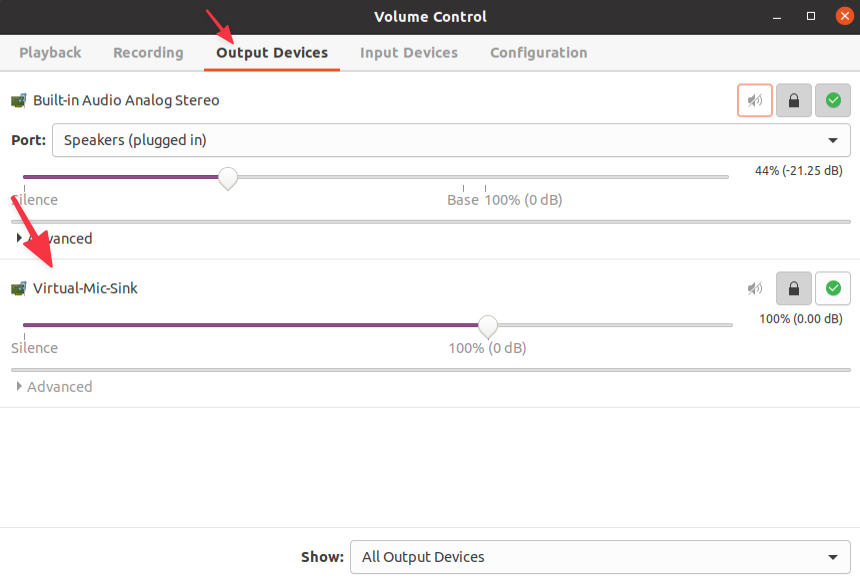
Result in Volume control
What the result should look like in Volume control / pavucontrol
(Installed via sudo apt install pavucontrol)

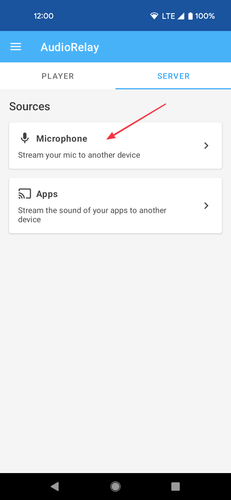
Start AudioRelay on your phone
- Go to the server tab
- Click on the microphone source
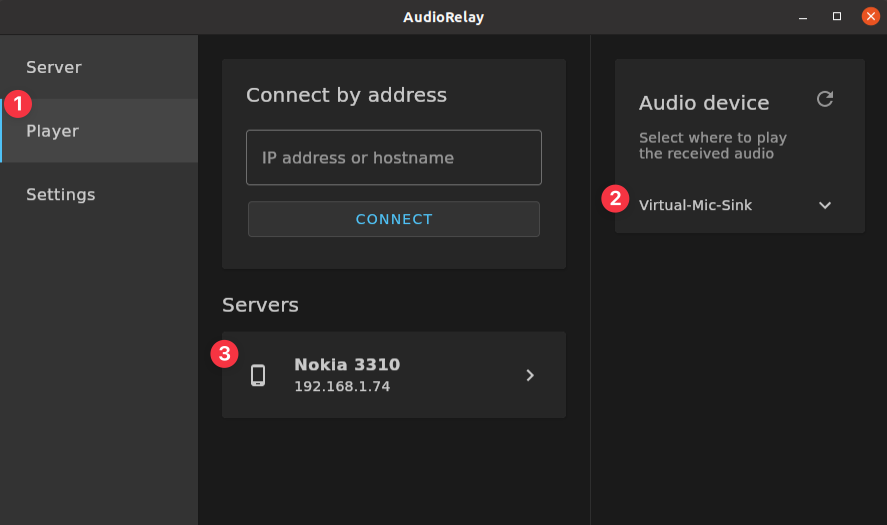
Start AudioRelay on your PC
- Go to the player tab
- Select Virtual-Mic-Sink as the audio device
- Click on your phone in the server list
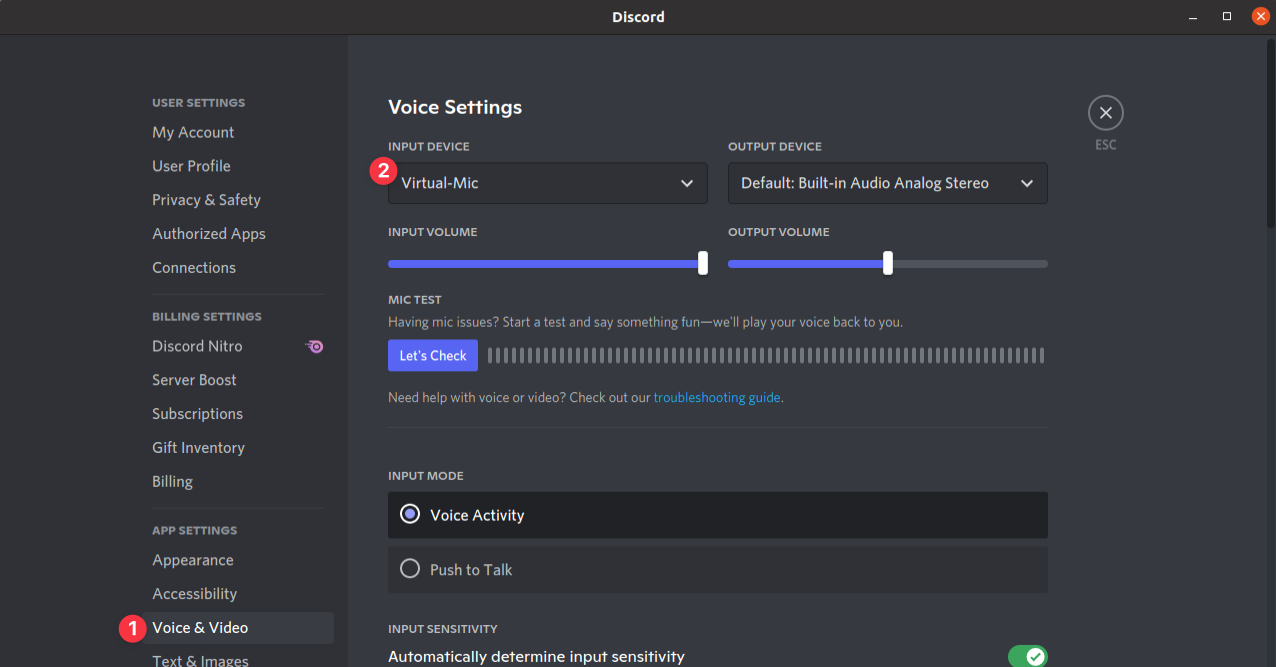
Start your communications app (Discord, Skype...)
- Find the microphone settings
- Select Virtual-Mic as an input device
Send anonymous feedback about AudioRelay here